Vaultli Full Reference Manual
The comprehensive reference behind the Getting Started guide's narrative introduction — every settings screen, field, and workflow, documented in depth for when you need the complete picture rather than the onboarding tour. Each "Under the Hood" box adds the technical mechanics for anyone who wants them; skip them freely if you don't.
1. Settings & the Category Schema Editor
Vaultli organizes your items by category (like Guitars & Basses, Watches, or Books & Magazines), and every category's data-entry form is generated from a schema you fully control. Nearly everything else in this manual sits downstream of the choices you make here.
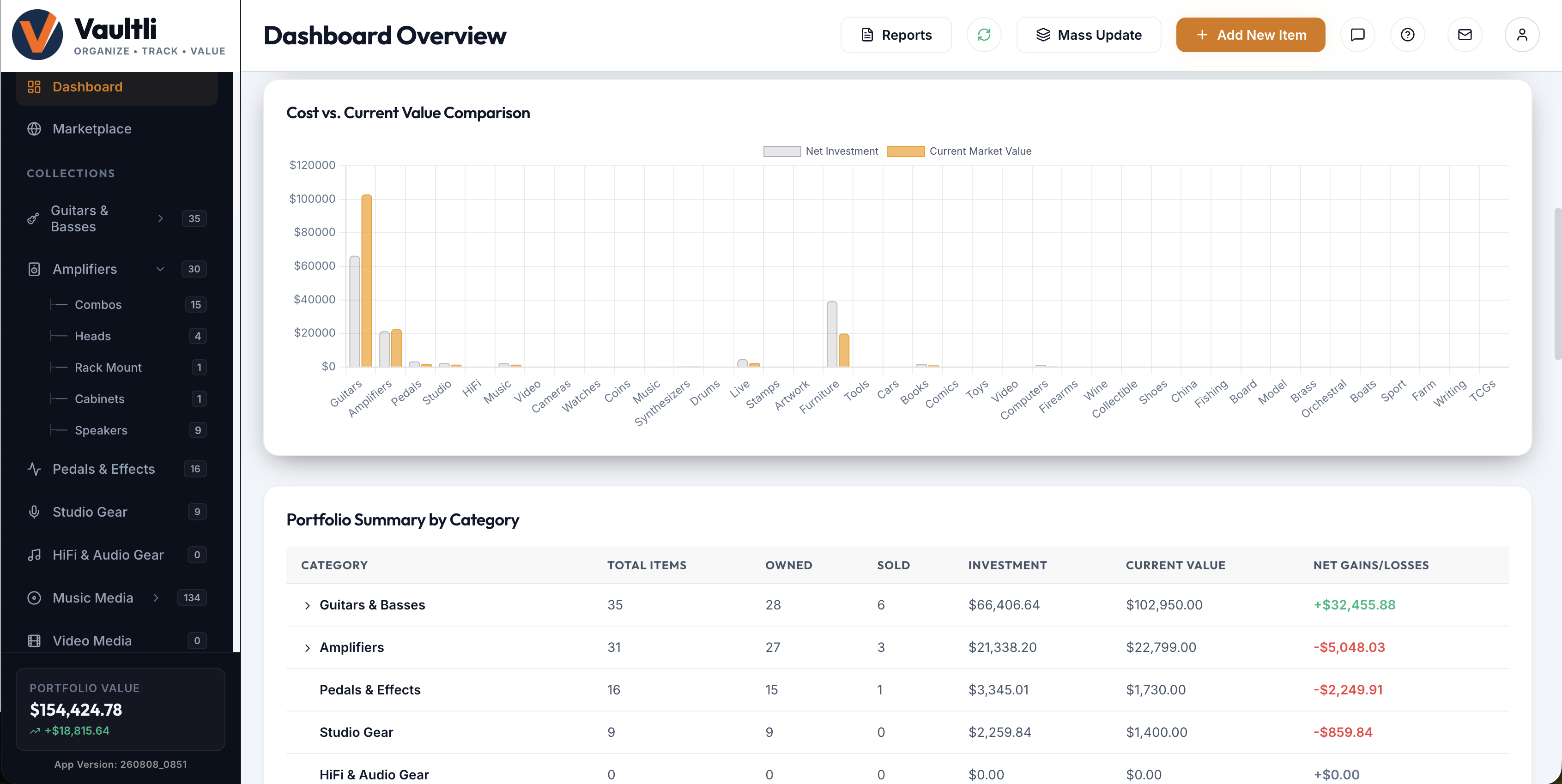
Accessing Settings
Click Settings at the bottom of the left sidebar. Five tabs run across the top of the screen:
- Metadata Fields & Layout — visibility, width, ordering, sub-groups, and aliases for every field in a category; create, hide, or delete categories; launch the Guided Builder.
- Data Field Options — manage the reusable choice lists behind every Dropdown field (covered in full in Section 2).
- Price Lookup Sources — configure the external market-value links offered from the item form's valuation search icon.
- App Preferences — Color Scheme (Light/Dark/System), the Marketplace's default view, and per-status color customization.
- Sync & Backups — despite the label, this tab currently holds your Account Information (signed-in email, sign-out) and User Profile fields (Marketplace username, owner/insured name, address, insurance carrier and policy number) used to auto-fill reports — not sync or backup settings, which live under the separate Import / Export screen covered in Section 8.
A. Customizing an Existing Category's Layout
- Open Settings → Metadata Fields & Layout.
- In the left pane, under Collection Categories, click the category you want to customize. Categories can also be dragged to reorder them in the sidebar from this same list.
- Set field visibility: each field row in the right-hand panel has independent checkboxes for whether it shows on the Grid card view, the Table view, and — separately — whether it's ever eligible to appear on a public Marketplace listing (see Section 10 for the full privacy model that governs the last one).
- Click Save Layout when done.
A field's type, its Sub-Group assignment, and its width are set separately, one tab over — see "Field Properties & Settings" in Section 2.
Renaming Fields with Aliases
Under the same Layout Editor, the built-in fields Brand, Model, Year, and Serial Number each accept a Base Field Override (Alias) — a per-category display label that replaces the generic name on the form and throughout that category's views, without changing the underlying field or breaking the cross-category reporting that depends on every item sharing the same real keys underneath. The Notes field is a special case: it accepts both a custom label and a custom placeholder prompt, so a generic "Notes" box can become, say, "Provenance & Condition History" with hint text guiding what to write there.
Many built-in categories already ship with sensible aliases out of the box — Music Media's Brand becomes Artist / Band / Label; Books & Magazines' Brand, Model, Year, and Serial Number become Publisher, Book Title, Publication Year, and ISBN / Barcode; Artwork & Sculptures' Model becomes Title of Work. You can override any of these further to fit your own naming.
There are no artificial character limits on text fields, dropdown option names, or text areas — arbitrary-length entries are supported throughout, so a long provenance note or a full catalog description is never clipped.
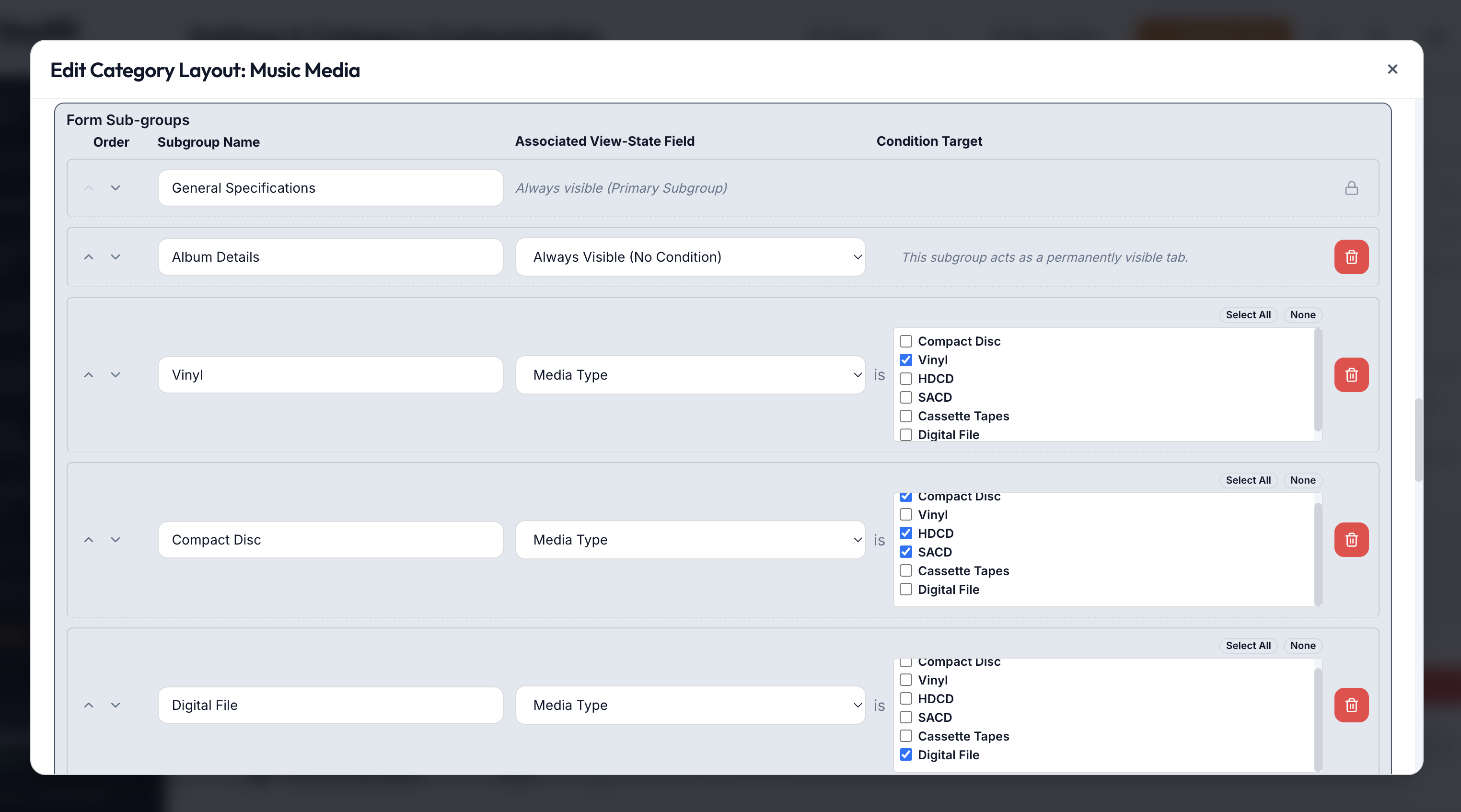
Sub-Groups & Conditional Visibility
Fields are organized into named Sub-Groups (like "General Specifications" or "Vinyl") that structure the entry form into logical sections instead of one long list. The primary sub-group is always visible and locked; any additional sub-group can instead be made conditional on another field's value — typically a "Type" or "Format" dropdown — and, notably, a conditional sub-group can trigger on any one of several values checked from a list, not just a single exact match.
B. Creating a New Category with the Guided Builder
- Open Settings → Metadata Fields & Layout, scroll to the bottom of the left pane, and click Launch Guided Builder.
- Basics: name the category and choose an icon.
- Fields: add each custom field with a label and a type (Text, Text Area, Dropdown, Checkbox, or Auto-Numbered List).
- Sub-groups: organize the new fields into sections, adding conditional sub-groups as needed.
- Visibility: choose which fields appear by default in Grid and Table views.
- Finish: review the summary and click Finish — the category appears immediately in the sidebar and the item form.
Next to Launch Guided Builder sits an Advanced Builder button — a faster, form-based alternative to the step-by-step wizard for anyone who already knows exactly which fields and sub-groups they want and would rather skip the guided flow.
Hiding vs. deleting a category. The eye icon next to a category temporarily removes it from your menus and forms without touching the items inside it. The trash icon deletes the layout configuration only — your inventory items are never deleted and remain safe in the background — and Restore Defaults instantly brings the original layout back for any built-in category.
Under the Hood: Layout Storage & Locking
- Layout storage: custom category structures and field overrides are written to the browser's
localStorageunder the keyvaultli_custom_categoriesas a JSON array, ahead of syncing to Supabase. - Locked defaults: built-in category templates carry an
isDefault: trueflag protecting their core field keys; customizing one clones the template into your owncustomCategoriesentry rather than mutating the shared default. - Field width: stored per-field as
1/3,2/3, orfulland read by the form renderer to size each field's container.
2. Dropdown Options & Mass Update
To keep records clean, Vaultli backs repetitive fields — Brand, Condition, Source, and any custom Dropdown — with reusable choice lists managed from Settings → Data Field Options. This same tab is also where a field's type, sub-group, and width are configured. Separately, the Mass Update tool (a top-toolbar button, not a Settings tab) applies a change across many items at once.
A. Adding & Editing Fields (Field Properties & Settings)
- Open Settings → Data Field Options, and under Select Collection Type and Select Metadata Field, choose the category and field — or click Add Metadata Field to create a new one.
- Switch to the Field Properties & Settings sub-tab.
- Set the Field Label, the Field Type — Text, Dropdown, Checkbox, Expanding Text Box, or Auto-Numbered List (Continuous or Restart) — the Form Sub-group it belongs to, and its Field Width (One-Third, Two-Thirds, or Full).
Custom field suffix. Fields you've added yourself are marked "(Custom)" in selectors to distinguish them from built-in fields — purely a label, with no effect on how the data is stored.
B. Managing Choice Lists
Back on the Manage Option Choices sub-tab, for any Dropdown field:
- Add one option at a time by typing into the field at the bottom and clicking Add.
- Bulk Edit opens a plain-text editor, one option per line, for rewriting the whole list at once — saving is blocked if a line you deleted is still in use on any item, with the affected items named so you can reassign them first (via the single "X" delete button on that specific option in the regular list).
- Sort A-Z re-sorts the list alphabetically in one click.
- Manual ordering: drag-and-drop any option to reposition it, or prefix an option's text with a bracketed number —
[1],[2], and so on — to pin a specific order. The bracket tag itself is stripped everywhere else the option is displayed.
Smart Sorting
Beyond manual ordering, Vaultli recognizes a few common list shapes and sorts them by real-world meaning rather than the alphabet: condition grades (Mint, Excellent, Good, Poor) sort by rank, and speaker configurations (2x12, 4x10) sort by quantity then size. For anything else, plain alphanumeric sorting applies.
File Under & alphabetizing quirks: a few items — a band name starting with "The," or a long parenthetical subtitle — sort in an order that looks wrong under strict character-by-character alphabetization (a comma sorts differently than a space at the same position). Every item has an optional File Under field specifically to override this: set it to the string you actually want sorted on (e.g. Beatles, The), and Table/Grid sorting uses it in place of the real name whenever it's filled in.
Auto-Numbered Lists
An Auto-Numbered List field (used for tracklists, chapters, and similar sequences) has an inline Auto-Renumber control that cleans up messy manual numbering and replaces it with a clean sequence. Choose Continuous to keep counting across section breaks (e.g. across "Volume 1" and "Volume 2"), or Restart to reset the count to 1 at each new section header.
C. Mass Update
Click Mass Update in the top toolbar to edit many items in one pass instead of opening each individually.
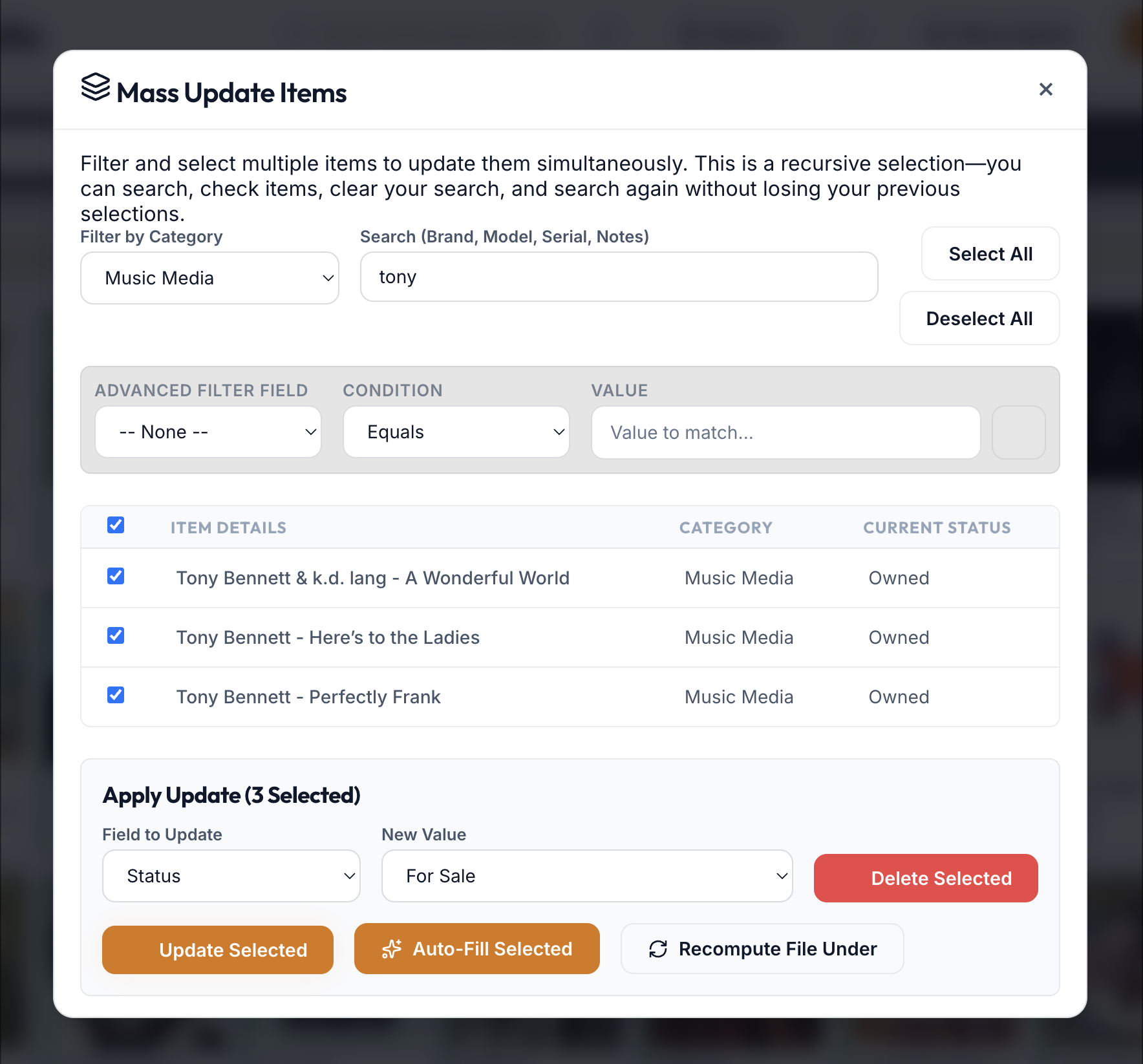
- Filter by category, free-text search (brand, model, serial, notes), or an advanced filter (a specific field, a condition, and a value to match).
- Select items individually, or use Select All / Deselect All for everything the current filter shows. Selections are recursive — clearing the search and running a new one keeps what you already checked.
- Under Apply Update, choose the Field to Update and its New Value, then click one of:
- Update Selected — writes the new value to every selected item and syncs immediately.
- Auto-Fill Selected — runs the Autofill specification lookup (Section 3) across every selected item at once, rather than one at a time.
- Recompute File Under — regenerates the File Under sort key for every selected item, useful after a bulk brand or title correction.
- Delete Selected — permanently removes every selected item; used with the same care as any individual delete.
Under the Hood: Sort Weights & Dropdown Storage
- Manual sort weights: a bracket-prefixed option (
[2] Excellent) is parsed into a per-category, per-field weight map stored under the system field keyDROPDOWN_SORT_WEIGHTS, consulted bysortDropdownOptions()ahead of any alphabetic or heuristic fallback. - Heuristic sorting: condition-grade and speaker-configuration detection run through dedicated parsers (
isConditionArray,isSpeakerArrayinutils.js) before falling back to locale-aware alphanumeric comparison. - Bulk-edit safety check: saving a Bulk Edit list diffs the new list against the old one and blocks the save if any removed value is still referenced by an existing item, rather than silently orphaning that item's data.
3. Cataloging: Forms, Media, Scanning & Duplicates
Adding an item is a form fill accelerated wherever possible by scanning and autofill, backed by a unified photo-and-document gallery.
A. Adding an Item
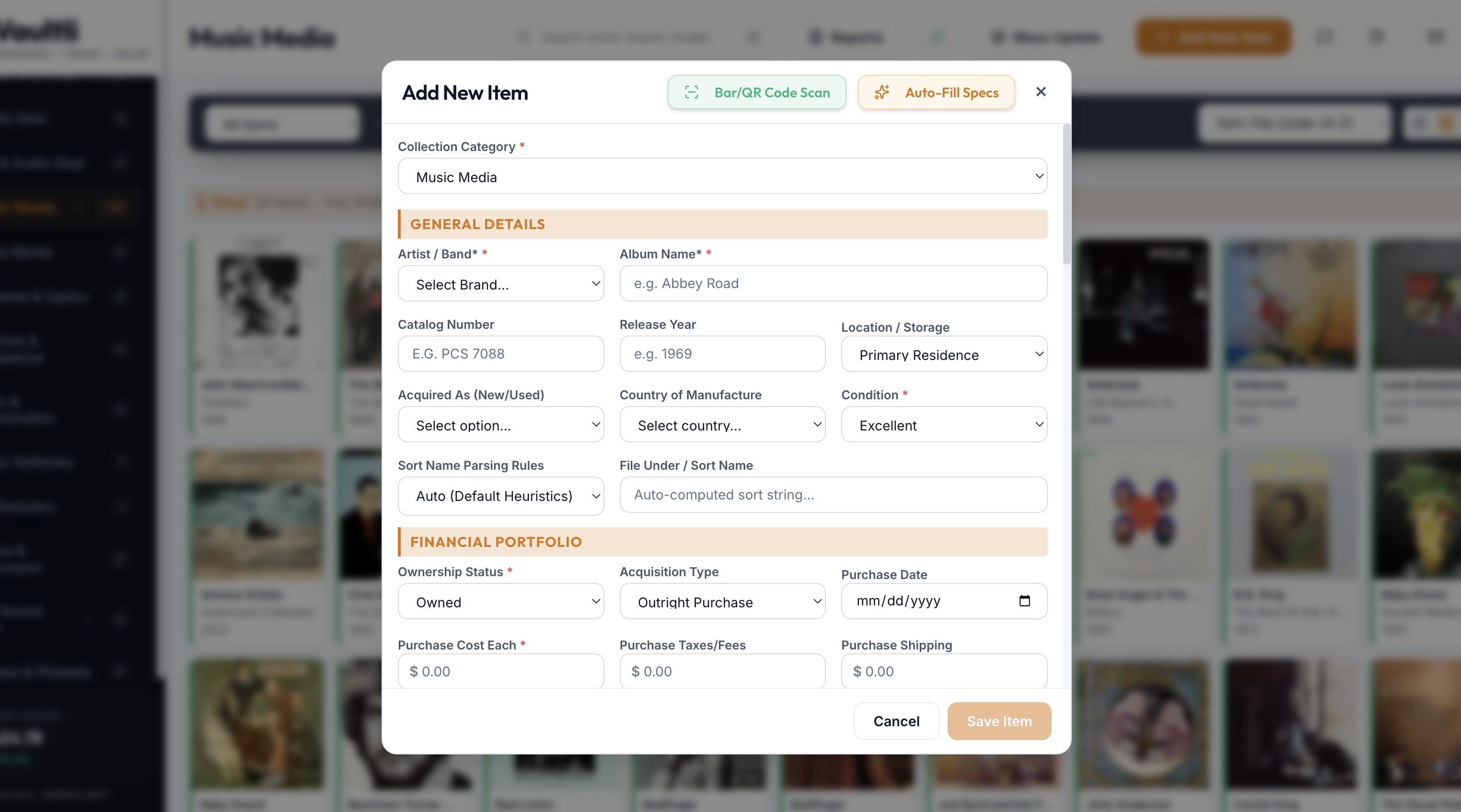
- Select a category from the sidebar and click Add New Item (top toolbar).
- Use Bar/QR Code Scan or Auto-Fill Specs if you have a barcode or catalog number, or fill in General Details manually.
- Complete the Financial Portfolio section (Section 5 covers every field here in depth).
- Attach photos or documents under Description & Media.
- Click Save Item.
B. Scanning a Barcode or QR Code
- Click Bar/QR Code Scan in the item form's header (a barcode-bracket icon).
- Allow camera access when prompted. On a phone, the rear camera is targeted automatically; on a desktop with more than one camera, a camera selector appears so you can pick the right one.
- Center the code inside the on-screen targeting box, well-lit and reflection-free.
- Once decoded, the camera view closes automatically, the result populates the Serial Number / Unique ID field, and an Auto-Fill specification search runs immediately.
No barcode to scan? Type a Serial Number/SKU or Brand/Model manually and click Auto-Fill Specs in the form header to run the same lookup.
C. Autofill Intelligence
Auto-Fill Specs looks up a UPC, barcode, or catalog number against external sources (Discogs and MusicBrainz for music, for example) and returns candidate metadata for review in a checklist modal — check the values you want, then click Apply. For eligible items, matching cover art or product imagery is resolved automatically, downloaded, and re-compressed to a local copy rather than hot-linked to an external CDN that could later go missing or rate-limit you.
D. The Media Pipeline
Every item has a single Photos & Documents gallery treating images and PDFs as one unified list — click to browse, drag-and-drop, or paste an image URL. Accepted files are images (JPEG, PNG, HEIC, and similar) or PDFs; other document formats like Word or Excel aren't accepted, so every attachment can be previewed directly in-app without third-party software. The first photo in the gallery becomes the item's Primary image everywhere it appears in list and grid views — reorder photos with the arrow controls to change which one holds that spot. PDFs work the same way as photos, opening in a full in-app viewer with page thumbnails on click.
Pasted image URLs are stored as links, not saved copies. Clicking to browse or dragging a file onto the gallery downloads and stores a permanent local copy on Vaultli's own servers. Pasting a URL instead just keeps the link exactly as typed — if that source ever takes the image down, renames it, or goes offline, the photo can quietly disappear from your item later. For anything you want to keep for good, save the image to your device first and add it as a file rather than a link.
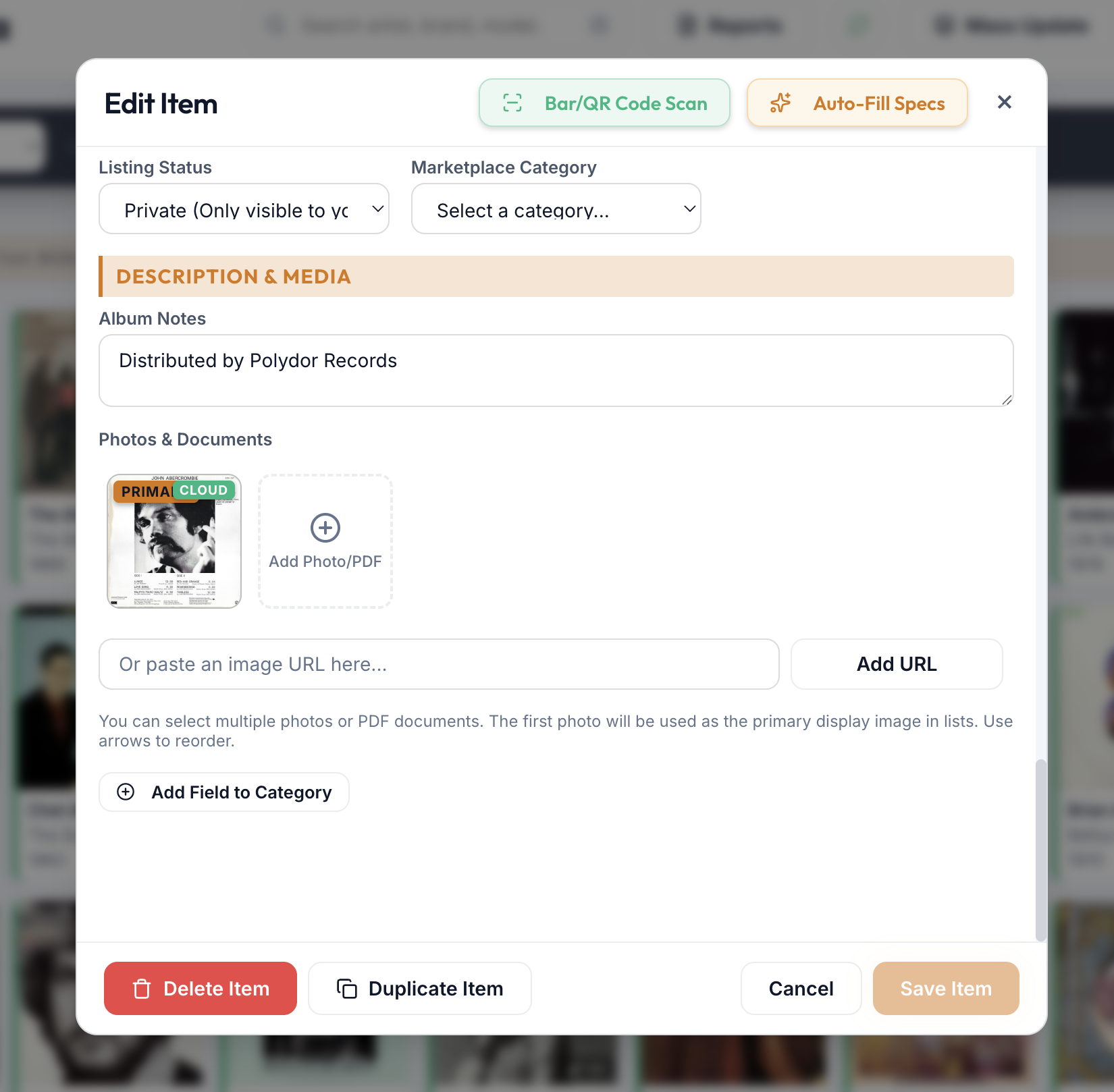
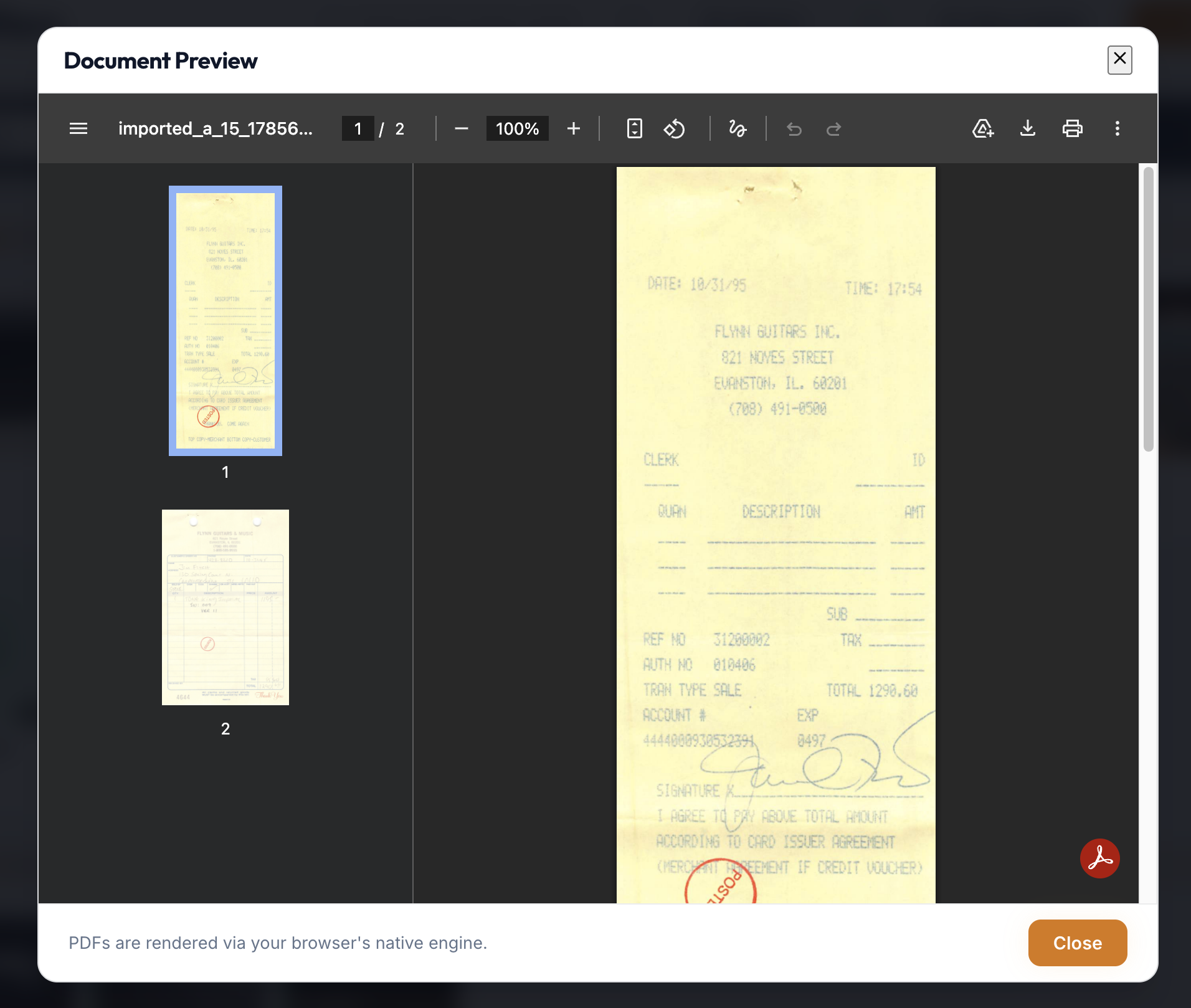
Working offline caches new uploads locally until you're reconnected; a very large PDF added while offline can occasionally fail to queue. If that happens, add it again once you're back online.
E. Duplicating an Item
For multi-disc box sets, matching equipment, or sequential volumes in a series, click Duplicate Item at the bottom of an existing item's edit form (next to Delete Item). This detaches a full copy — specs, tracklists, catalog numbers, and images all carried over — as an unsaved draft, leaving the original untouched. Make your edits (say, "Disc 1" to "Disc 2") and click Save Item to log it as a new, separate record.
Accidental-duplicate protection. If you save a new item whose Serial Number/SKU already matches an existing item, Vaultli asks whether you meant to increase that existing item's quantity instead of creating a true second record — helpful when you're re-adding the same purchase, or logging another unit of something you already own.
Under the Hood: Scanner Engine & Attachments
- Scanner library: barcode/QR decoding runs on the third-party
html5-qrcodelibrary, configured withfacingMode: "environment"(rear camera) andadvanced: [{ focusMode: "continuous" }]for autofocus, a280×150scan box, andfps: 25. - Attachments: uploaded images and PDFs are uploaded to Supabase storage, with the resulting URL linked back into the item record's image/document array.
4. Group Records
Not everything is best tracked as one standalone item. A case of the same wine across different vintages, or the same microphone model bought in a few separate purchases, is really one logical thing made of several real acquisitions — that's what a Group Record is for.
Creating a Group Record
- Click New Group Record (next to Add New Item) instead of adding a standalone item.
- A Group Record's form skips fields that don't apply at the group level — Serial Number, Condition, an individual Purchase Date, and similar — since it exists purely to summarize what's linked beneath it.
- Each individual acquisition is still entered as its own full item, with its own quantity, purchase date, cost, and condition.
Automatic Linking
Vaultli links a Group Record to matching items automatically, in either order: if the group already exists, a new item is linked to it the moment its Brand and Model match; if you add items first and create the group afterward, saving the new Group Record sweeps up every existing unlinked item with a matching Brand and Model.
Aggregated Group Financials
A Group Record's form shows a live Grouped Items list plus Group Financials (Aggregated) — Total Acquisition Cost, Average Cost per Unit, Total Current Value, and Average Value per Unit — computed automatically across every linked child item, so the total count and blended cost basis are always current without manual math.
A Group Record can be unlinked from a specific item at any time by clearing that item's Parent Item field — the item becomes a standalone record again, and the group's totals update to match.
Under the Hood: Parent/Child Linking
- Data model: a Group Record sets
isGroupRecord: true; each child item carries aparentItemIdpointing back to it. There's no separate "group" table — a group is just an item with children pointed at it. - Field hiding:
toggleGroupRecordFields()hides a fixed list of per-unit fields (Serial Number, Condition, Purchase Date, and similar) on a Group Record's form and restretches the layout to avoid empty gaps. - Auto-link matching: on save, an unlinked item with no
parentItemIdis matched to an existing Group Record by a case-insensitive Brand + Model match; saving a Group Record itself sweeps for unlinked items matching its own Brand + Model.
5. Ownership, Financials & Trade-Ins
Every item carries an Ownership Status and a full financial history, from what you paid to what it's worth today.
Ownership Status
The real status list is more granular than a simple owned/sold toggle: Owned, Hold, For Sale, Maybe Sell, Loaned Out, and Wishlist all count toward (or are tracked ahead of) your live portfolio; Sold, Gifted, Donated, Returned, Traded-In, Stolen, and Destroyed/Scrapped are disposed states rolled into Realized Delta instead.
Each status renders as its own color-coded badge on cards, tiles, and table rows:
| Badge | Status Value(s) |
|---|---|
| Emerald green | Owned (the default) — also Loaned Out and Returned, which have no dedicated color of their own and inherit this one. |
| Golden amber | Hold |
| Coral / red-orange | For Sale (status value Sell) |
| Deep indigo | Maybe Sell (status value Maybe) |
| Bright cyan | Consigned — overrides the badge above whenever isConsignment is checked and the item hasn't reached a disposed/sold state |
| Steel slate gray | Sold (a standard sale, i.e. Sale Type is not Trade-in) |
| Amethyst purple | Trade-in (a Sold item where Sale Type is Trade-in) and Traded-In (the linked item given up toward a new purchase) |
| Vibrant pink | Gifted |
| Sky blue | Donated |
| Dark charcoal | Disposed, Stolen, and Destroyed/Scrapped — three distinct status values sharing one badge style; the label text always names the actual status |
| Royal blue | Wishlist |
Under the Hood: Status Badge Classes
Each row above maps to one CSS class applied alongside the generic .badge class: badge-status-owned, badge-status-hold, badge-status-sell, badge-status-maybe, badge-status-consigned, badge-status-sold, badge-status-trade, badge-status-gifted, badge-status-donated, badge-status-disposed, and badge-status-wishlist. Loaned Out and Returned fall through the same logic's default case and receive badge-status-owned along with everything else that isn't explicitly matched.
The Financial Portfolio Section
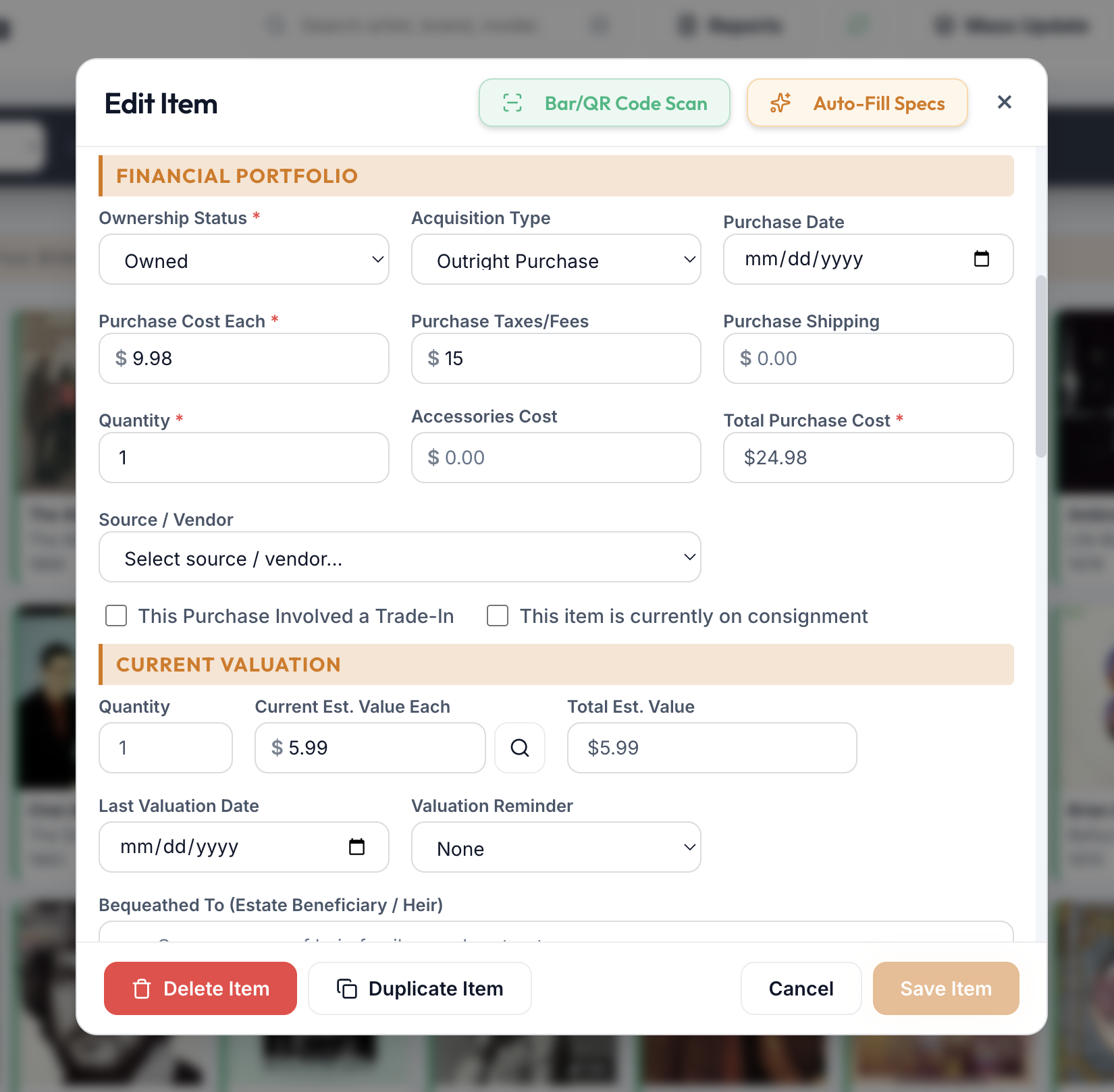
On the item form, under Financial Portfolio:
- Acquisition Type — Outright Purchase, Purchase with Trade, Gift Received, or Borrowed — a general categorization independent of the Trade-In checkbox below.
- Purchase Cost Each, Purchase Taxes/Fees, Purchase Shipping, Quantity, and Accessories Cost roll up automatically into Total Purchase Cost — your cost basis.
- Source / Vendor — where it came from, drawn from the same dropdown list covered in Section 2.
- This Purchase Involved a Trade-In and This item is currently on consignment — two independent checkboxes, each revealing its own sub-form (below).
Under Current Valuation: Quantity, Current Est. Value Each, and Total Est. Value, plus Last Valuation Date and a Valuation Reminder (None, 6 Months, 1–5 Years) that nudges you to re-check pricing on a schedule you choose per item.
A. Linking a Trade-In
Buying a new item partly funded by trading in an old one:
- Make sure the traded item is already in your inventory.
- Create the new item, enter its full Purchase Cost Each, and check This Purchase Involved a Trade-In.
- Search for and select the traded item from the list that appears.
- Enter the trade-in allowance and the date the trade occurred — a transaction summary shows gross cost, the allowance applied, and your actual net cash outlay.
- Save. The traded item's own status and trade fields update automatically and lock against further edits, so the same allowance can't accidentally be spent twice.
A linked purchase or trade-in item can't be deleted directly — Vaultli blocks it to avoid an orphaned link. Edit the purchase and uncheck "This Purchase Involved a Trade-In" first to free both records up.
B. Consignment
Checking This item is currently on consignment reveals Consigned Asking Price, Consignment Vendor, Start Date, and Contract Duration (Days) — enough to track an item you've handed off to a shop or auction house to sell on your behalf, separately from your own Marketplace listings (Section 10).
C. Estate Planning: The Bequeathed To Field
Every item's Current Valuation section includes a Bequeathed To (Estate Beneficiary / Heir) field — a simple, optional place to record who a specific item should go to as part of an estate plan or will. It has no effect on ownership status or valuation; it's captured once, alongside the item itself, and flows automatically into CSV exports and the Estate & Testamentary report covered in Section 7.
Under the Hood: Trade & Consignment Linking
- Trade-in linkage: maintained via a foreign key (
linked_item_id/tradedItemId) on both records; saving a linked purchase transactionally updates the traded item's status toTraded-In, disables its own trade fields, and setslinked_to_purchaseto prevent the allowance being reused elsewhere. - Deletion guard: the delete handler checks for a populated
linked_item_id/tradedItemIdon either side of a link and refuses the delete until it's cleared. - Consignment fields:
isConsignment,consignmentPrice,consignmentVendor,consignmentStartDate, andconsignmentDurationare plain item fields with no separate linkage — a self-contained record on the item itself.
6. Browsing, Filtering & Views
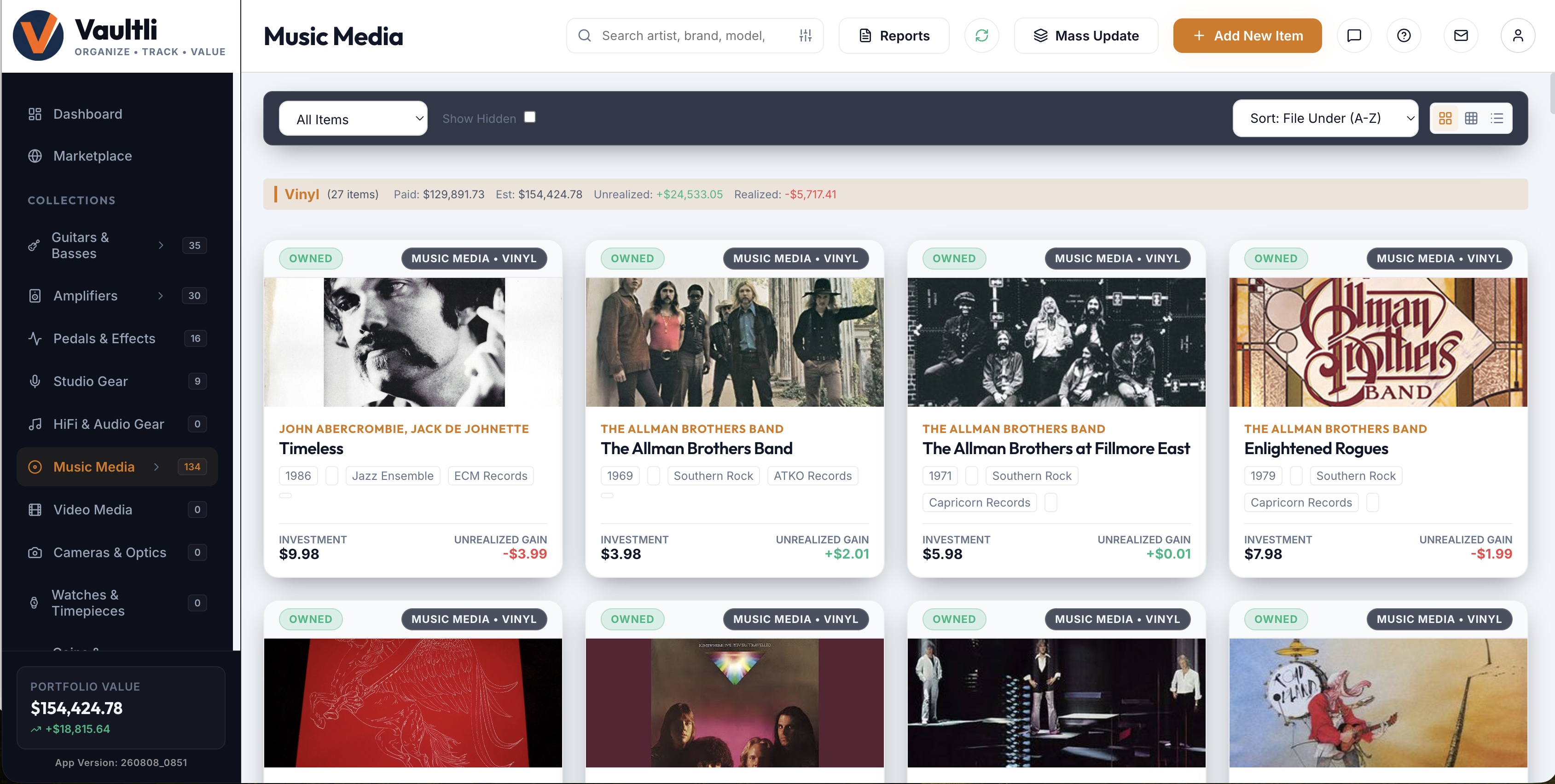
Every Collection offers the same three layouts, one click apart in the view-switcher, plus a consistent set of filtering and search tools underneath.
Three View Layouts
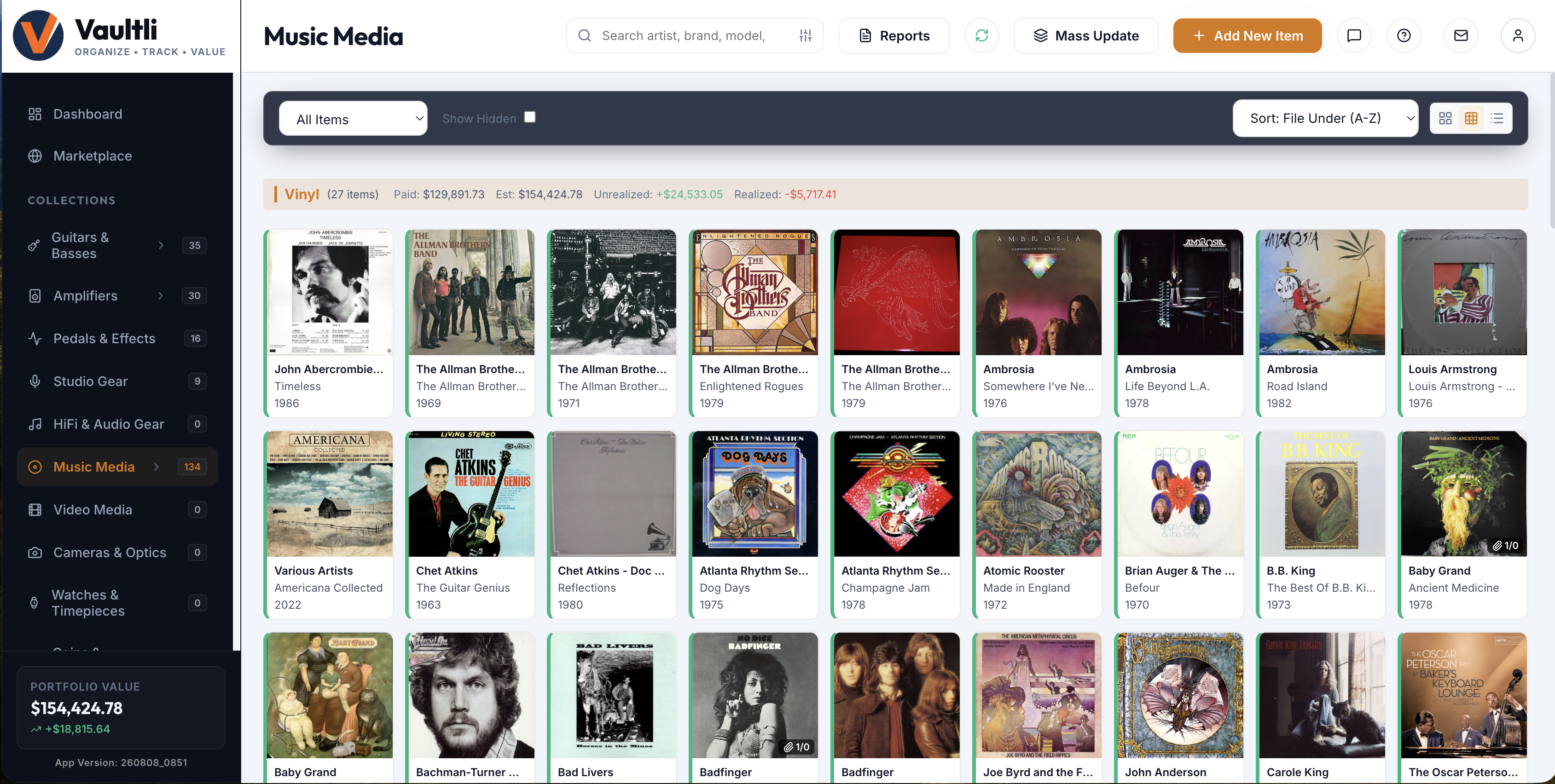
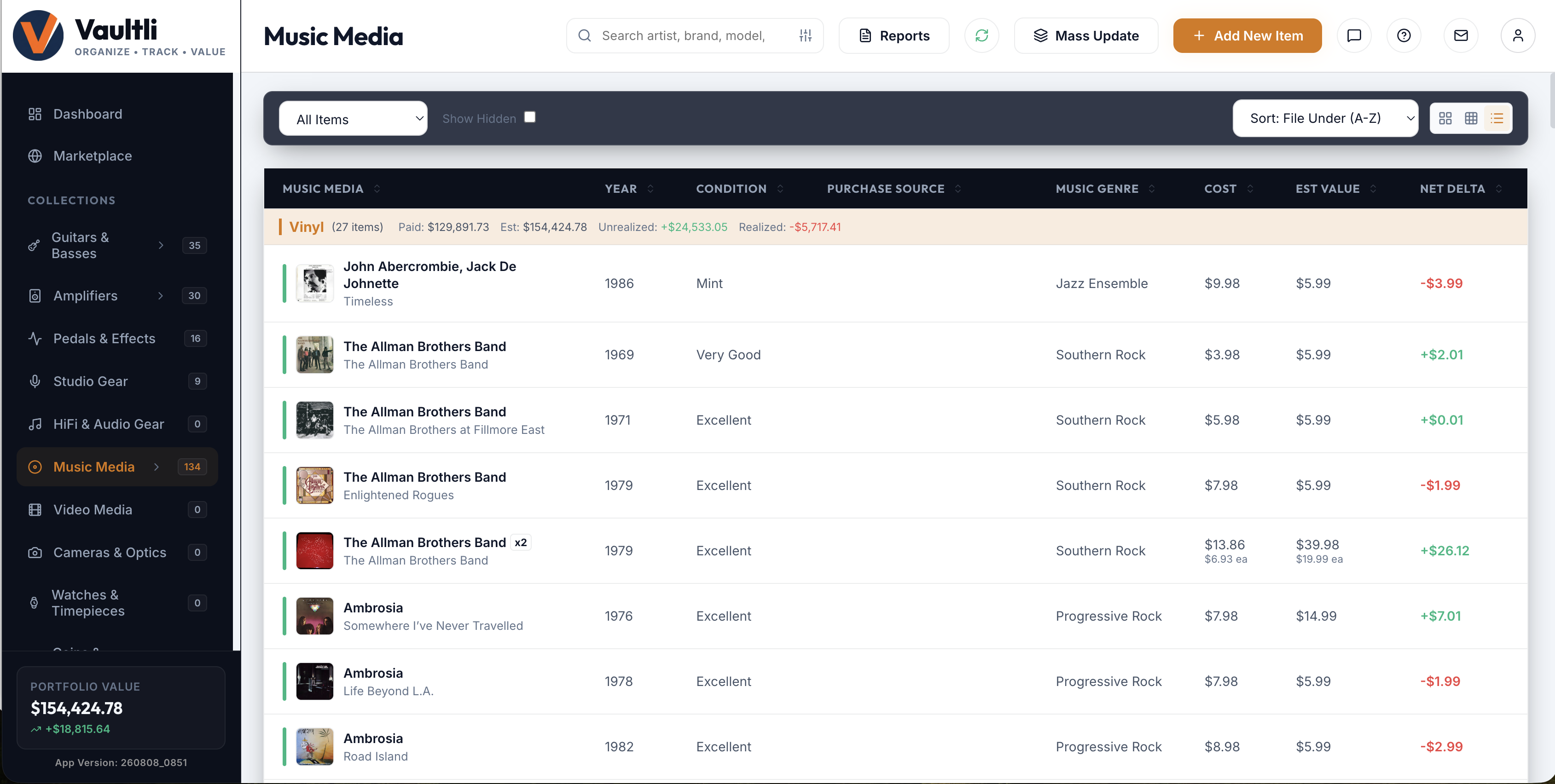
Filtering & Search
- Status Tab Bar — a row of tabs across the top of the item list isolates items by ownership status (active Owned items, or a historical Sold log, for example) without needing the advanced filter panel.
- Show Hidden — a toggle for items you've deliberately tucked out of daily view without deleting them.
- Advanced filter panel (the filter icon beside search) — stacks additional conditions: category-specific dropdown values, valuation ranges, and custom field tags.
- Global Instant Search — queries as you type across both system fields and every custom field defined for that Collection, so a search by pressing plant, serial fragment, or custom tag works as reliably as a search by brand.
Reading Icon Badges
Beyond the color-coded status badge (Section 5), a handful of smaller icon badges can appear on a card or thumbnail:
| Badge | Meaning |
|---|---|
| Blue circular counter | Shares one visual style across three different meanings, disambiguated by its tooltip: a plain item quantity, a Group Record parent's attached child count (records and total units), or an "extra photos / documents" split for an item with more than one attachment. |
| Amber clock icon | The item's valuation is past due for a refresh: Last Valuation Date plus its Valuation Reminder interval (6 Months through 5 Years) has elapsed. |
| "Primary" tag | Shown in the photo manager on whichever photo is the current cover image for that item (used on cards, lists, and reports). |
| "Cloud" / "Offline" tag | Shown per-photo in the photo manager: Cloud means that file's src is already an uploaded URL; Offline means it's still a local file on this device pending its next sync. |
| Small gray spec pills | Year, Condition, Source, or a category's chosen highlight field, rendered as quick-glance tags under an item's title — not a status indicator. |
Under the Hood: Icon Badge Classes
- Attachment/quantity counter: one shared
.attachment-counter-badgeelement, re-purposed with different content and a differenttitletooltip depending on context (Group Record child count, plain quantity, or extra-photo/PDF count). - Valuation past-due:
.image-warning-badge(or an inline equivalent in list view), computed by comparinglastValuationDateplus the parsedvaluationReminderMonthsagainst the current date on every render. - Primary / storage tags:
.primary-photo-badge, and.storage-badgewith eitherbadge-storage-cloudorbadge-storage-offline— the cloud/offline check is simply whether that image's string starts withhttp. - Spec pills:
.spec-badge-micro, populated from Year/Condition/Source or a category's designated highlight field.
Under the Hood: View State & Rendering
- View modes: internally named
grid(Rich Card Grid),dense(Dense Grid), andtable(Detail Table View) — set per-category and remembered independently of the Marketplace's own default view. - In-memory sorting: Table view column sorting runs over the already-loaded item array client-side rather than re-querying the database, so re-sorting is instant even on a large Collection.
7. The Report Generator
Click Reports in the top toolbar to open the Collection Reports Generator — a dedicated tool for turning your inventory into a formatted document for someone outside the app, distinct from the raw CSV/JSON export in Section 8.
Report Types
The Report Layout Style selector offers three real report types, each changing the header fields you fill in and the document's framing:
- Standard Inventory Statement — a general-purpose valuation report under your own name, suited to a personal portfolio summary.
- Insurance Valuation Statement — asks for the insured owner's name, insurance carrier, and policy/reference number; formats the result for a claims adjuster or a policy's scheduled-items requirement.
- Estate & Testamentary Distribution Report — asks for the testator's name, the estate executor or trustee, and a will/trust reference, and lays out each item's current value alongside its Bequeathed To field (Section 5) — printed as an "Estate & Testamentary Distribution Statement" on the document itself.
Building a Report
- Choose Category and Status filters (usually Owned, for an insurance valuation) — brand, model, and source filters are also available for a narrower cut.
- Toggle Include Primary Photo thumbnails, Include Category Custom Specifications, and Include Location / Storage details — all checked by default.
- Header fields (name, carrier, policy number, and similar) auto-populate from your User Profile (Section 11) and can be edited directly on the form without changing your saved profile.
- Click Export CSV for a spreadsheet of the filtered report, or Generate printable PDF to open a clean, print-styled document in a new tab — press
Ctrl+P/Cmd+Pto print or save it as a PDF to send along.
Run the Insurance Valuation Statement before you ever need to file a claim — it's far easier to keep a current one on hand than to reconstruct a full scheduled-items list from memory after a loss.
Under the Hood: Dynamic PDF Construction
- PDF rendering: clicking Generate PDF compiles the filtered report into HTML, styles it with a dedicated
@media printstylesheet (print margins, forced page breaks between rows viapage-break-inside: avoid), and opens it in a new window withwindow.open()rather than generating a binary PDF server-side. - Totals: replacement-cost totals for insurance reports, acquisition-cost totals for standard reports, and net gain/loss for estate reports are all calculated at report-build time from the filtered item set, not cached.
8. Data Portability: Import, Export & Backups
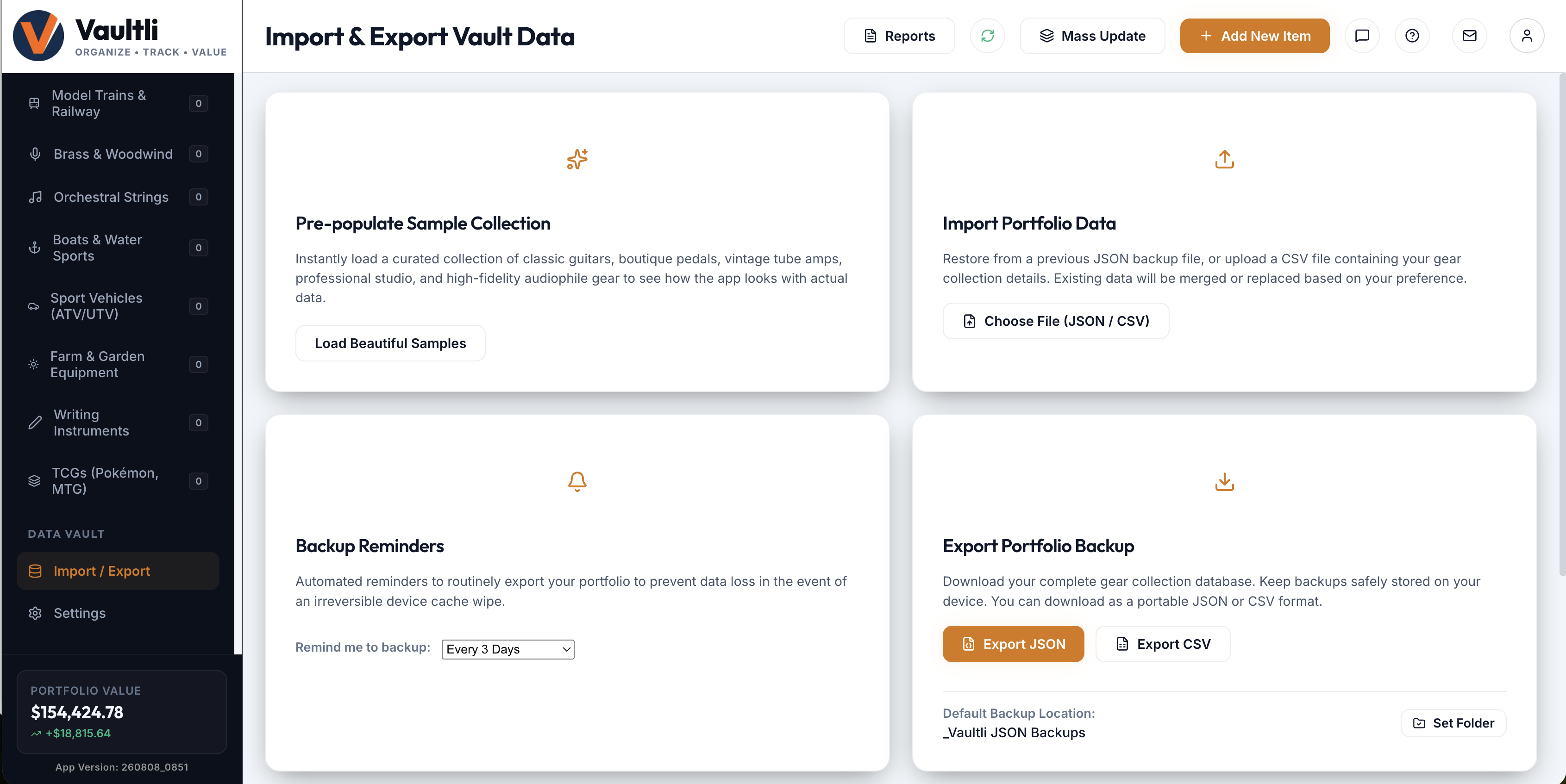
Everything under Import / Export in the left sidebar — separate from Settings — is about keeping your own copy of your data, on your own terms.
Exporting
- Export JSON — a complete, restorable backup: every item, your custom category layouts, dropdown lists, price sources, and category order, in one file. This is your real recovery backup.
- Export CSV — a flat spreadsheet of your items (no images) for Excel, Google Sheets, or Numbers.
Backup Reminders & a One-Click Default Folder
- Set Remind me to backup to a frequency — Never, Every 1/3/5 Days, Weekly, Bi-Weekly, or Monthly. If you haven't exported a JSON backup within that window, a reminder appears on launch.
- Optionally, click Set Folder next to Default Backup Location to choose a save destination once (a modern-browser feature — Chrome or Edge).
- With a folder set, the reminder's Save Backup Now button — and the regular Export JSON button — write the file straight to that folder automatically, with no save dialog. The whole backup takes under a second, which is what makes it easy to actually act on the reminder every time instead of dismissing it.
Importing & Fuzzy CSV Mapping
- Under Import Portfolio Data, choose a
.jsonbackup or a.csvspreadsheet. - A JSON backup restores directly. A CSV whose headers don't already match Vaultli's fields opens the Map CSV Columns modal, which fuzzy-matches and pre-selects the most likely column for each field — review and adjust any that guessed wrong, or choose — Skip Column — to ignore one. Required fields are marked with an asterisk.
- Click Complete Import.
Set up your categories in Vaultli (via the Guided Builder, Section 1) before importing a custom spreadsheet — matching category names ahead of time lets your CSV's cells map into the right custom fields and sub-groups, instead of falling back to a generic default category.
Rolling Snapshots: Undoing a Bad Sync
Vaultli automatically takes a hidden snapshot of your local data immediately before every cloud sync. If a sync unexpectedly wipes or overwrites something, Undo Last Sync (Restore Local Snapshot) — found alongside the Default Backup Folder setting — rewinds you to the snapshot taken just seconds earlier, independent of your manual JSON backups.
Under the Hood: Backup Schema & Fuzzy Matching
- JSON backup shape:
items,customCategories,systemCategoryCustomFields,dropdownOptions,priceSources, andcategoryOrder— the same root objectexportToJSON()writes whether it's saved via a browser download or directly to a Default Backup Folder. - Default Backup Folder: implemented with the File System Access API (
window.showDirectoryPicker); the chosen directory handle is remembered in IndexedDB, its write permission re-checked before each save, with an automatic fallback to a normal browser download if the API is unsupported or permission is denied. - Fuzzy CSV matching: normalizes both the CSV header and the field key with
replace(/[^a-z0-9]/g, '')and pre-selects a column whenever either normalized string contains the other.
9. Cloud Sync & Multi-Device Use
Vaultli is local-first: every change saves to your device instantly and syncs to the cloud in the background, so a dropped connection never blocks data entry (see the sync-state colors in the Getting Started guide's Chapter 1). Using it on more than one device at once needs one habit in return.
The Multi-Device Safety Net. If you're scanning items on your phone while your laptop has the same page open, the laptop detects the remote change over a live connection and shows a flashing Refresh Data button in the top bar. Click it immediately — it safely pulls in the new data and prevents your laptop from later overwriting your phone's fresh scans with its own stale copy.
Under the Hood: Realtime Subscriptions & Row-Level Security
- Realtime subscriptions: Vaultli subscribes to Postgres change events (
supabase.channel(...).on('postgres_changes', ...)) on thevaultli_itemsandvaultli_settingstables. An incoming remote change while your own edits are pending triggers the Refresh Data prompt rather than silently merging or overwriting. - Row-Level Security: every table enforces per-user row ownership in Postgres. The actual policy on
vaultli_items:CREATE POLICY "Users can view their own gear items" ON public.vaultli_items FOR SELECT USING (auth.uid() = user_id);with matching INSERT/UPDATE/DELETE policies alongside it — so even a compromised client-side request can't read or write another user's rows. The Marketplace table (Section 10) is the one deliberate exception, with a public SELECT policy so listings are visible to everyone.
10. The Marketplace
The Global Discover Marketplace lets you showcase, sell, or trade individual items publicly while everything else about your account stays private by default.
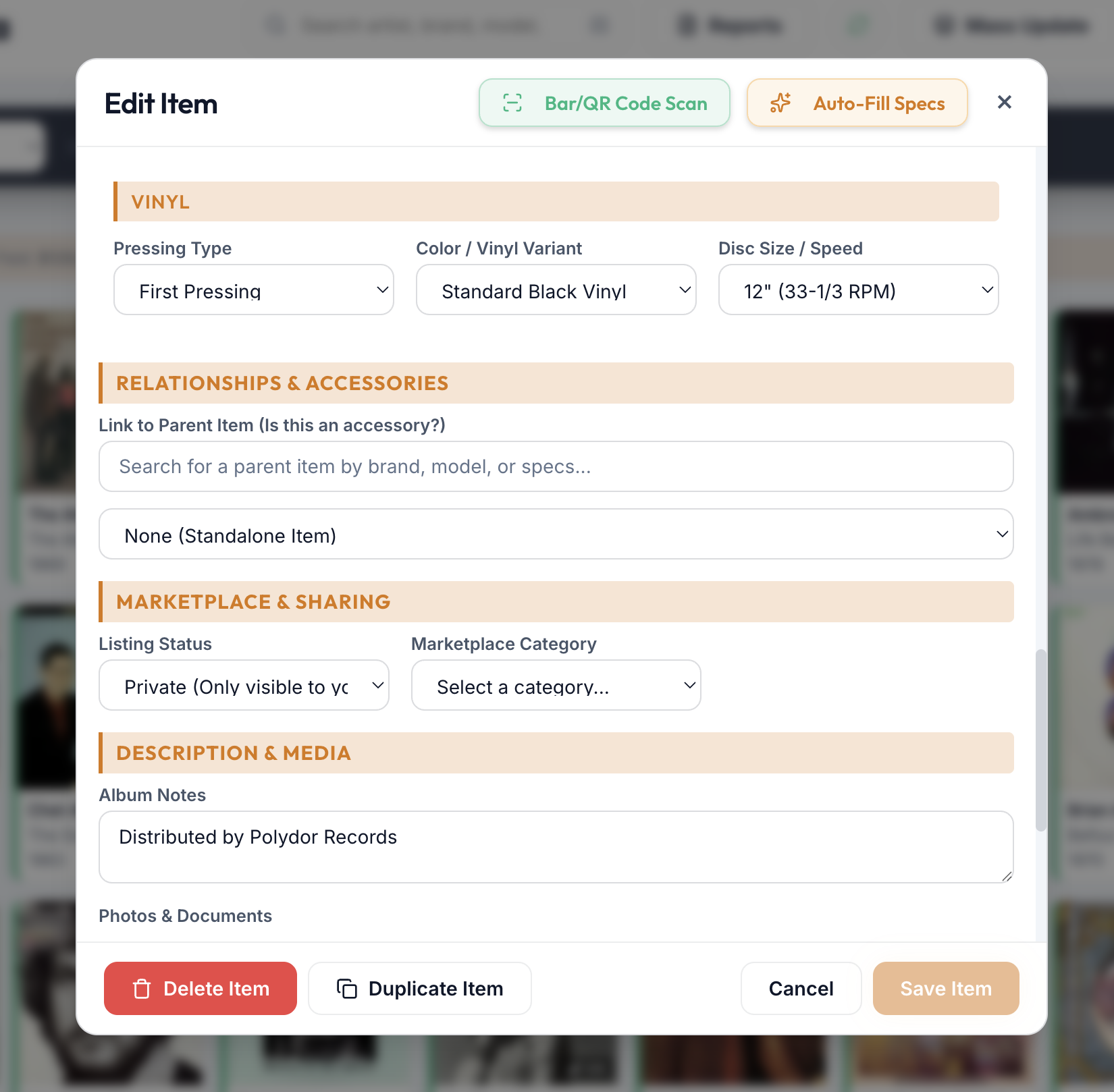
Publishing an Item
- Open the item's edit modal and find the Marketplace & Sharing section.
- Set Listing Status to Public Showcase (display only), Public Sale, or Public Trade, and choose a Marketplace Category so buyers can browse by type.
- For Sale or Trade, an Asking Price field appears — leave it blank and the listing falls back to the item's Current Value automatically.
- Use the freeform Marketplace Notes field for posting-specific detail (condition caveats, shipping terms, trade interests) — this is separate from and unrelated to the item's private Notes field.
- Save. The item appears on the Marketplace immediately, and Copy Link generates a shareable URL for it.
Privacy Controls
Three safeguards apply specifically to what a listing shows publicly, independent of the item's own private record:
- Per-photo Public checkboxes — every photo in the gallery has its own toggle for public inclusion; only the current Primary photo is public by default.
- Automatic PDF/receipt exclusion — documents are never eligible for publication, with no override.
- Private-by-default Notes — the item's private Notes field is excluded from public listings unless a category's schema explicitly turns on its Marketplace visibility (Section 1).
Every other field's public visibility follows the same Marketplace-visibility checkbox described in Section 1 — nothing is public unless its category's Layout Editor says so.
Snapshots stay current automatically. Re-saving an already-published item refreshes its public listing immediately. Changing a category's field-visibility rules in the Layout Editor also republishes every already-public item in that category against the new rules, so a listing never keeps showing a field or photo you've since made private.
Buyer Messaging
A prospective buyer clicks Contact Seller on a public listing to send a message through a simple contact form — no account details are exchanged directly. Replies and incoming messages land in your own Inbox (the mail icon in the top toolbar).
The list of Marketplace Categories itself is managed the same way as any other dropdown list (Section 2) — from Settings, with the same single-add, Bulk Edit, and in-use protection.
Under the Hood: Publish Payload & Data Isolation
- Publish payload:
publishItemToMarketplace()filters the item's own image array down to only the URLs explicitly marked public (falling back to the Primary photo for older listings published before this control existed), strips any PDF regardless of that flag, and writes only Marketplace-visible fields to the publicvaultli_marketplacetable — your purchase costs, receipts, and private fields never leave your own account's rows. - Price handling: the asking price is sanitized (stripping currency symbols and separators) before being stored.
- Republish triggers: both a normal item save and a category schema-visibility change call the same publish function again for every affected public item, so the two paths can never drift out of sync with each other.
11. Your Profile & Account
Your profile and account settings currently live under Settings, on the tab labeled Sync & Backups — the label is a holdover, but the content is your account and profile information, not sync or backup controls (those are the separate Import / Export screen from Section 8).
Account Information
Shows the email you're signed in as, with a Sign Out button to end your session.
User Profile (Report Autofill)
These fields exist to save you from re-typing the same information every time you generate a report or publish a listing:
- Marketplace Username — required before you can publish any public listing (Section 10).
- Owner / Insured Name and your Primary Residence Address (street, unit, city, state, ZIP).
- Default Insurance Carrier and Policy Number.
All of these auto-populate the Report Generator's header fields (Section 7) the moment you open it, though you can always override them per-report without changing what's saved here.
Under the Hood: Profile Storage
- Profile data is stored in your account's settings record and synced to the
vaultli_settingstable, under the same Row-Level Security policy described in Section 9 — no one else can read it.